Google Authenticator 是一款由谷歌开发的免费安全验证应用程序,可在你的设备上生成双重验证码。本文将详细介绍 Google Authenticator 的工作原理、设置方法、常见问题解答,以及替代方案,助你全面了解并有效利用这一工具,提升账户安全性。
什么是 Google Authenticator?

Google Authenticator 是一种基于时间的一次性密码(TOTP)验证器,用于双重验证(2FA)。它会在你的手机或其他设备上生成一个 6-8 位数的验证码,你需要将此验证码与你的密码一起输入,才能登录你的账户。这为你的账户增加了一层额外的安全保障,即使密码泄露,未经授权的人也无法访问你的账户,因为他们还需要你的设备上的验证码。
Google Authenticator 的工作原理
Google Authenticator 的工作原理相对简单,但非常有效:
- 启用双重验证:在支持 2FA 的网站或应用程序中,选择启用双重验证,并选择 Google Authenticator 作为验证方式。
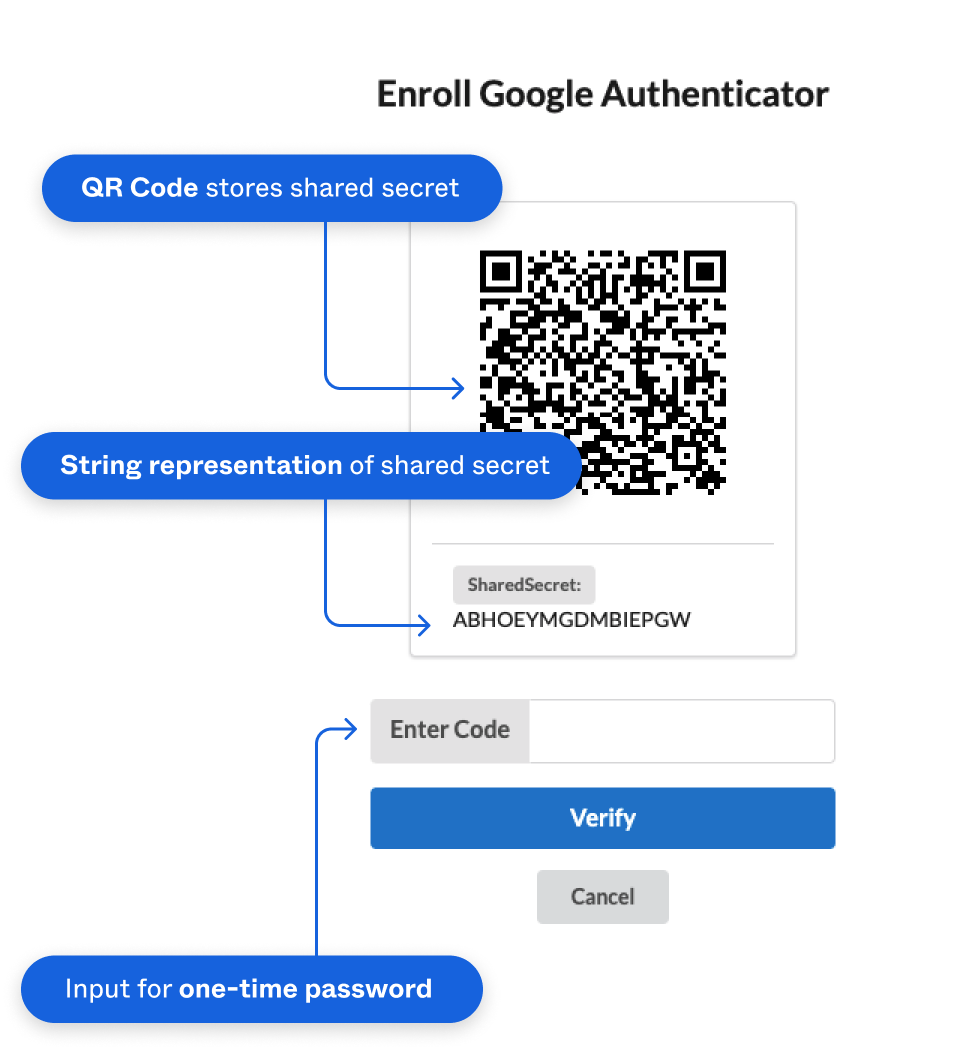
- 扫描二维码或手动输入密钥:网站或应用程序会提供一个二维码或密钥。使用 Google Authenticator 应用程序扫描二维码或手动输入密钥。
- 生成验证码:Google Authenticator 应用程序会定期(通常是 30 秒)生成一个新的验证码。
- 登录:登录时,输入你的密码,然后输入 Google Authenticator 应用程序中显示的验证码。

Google Authenticator 使用基于时间的算法来生成验证码,因此你的设备和服务器的时间必须同步。如果时间不同步,验证码可能会失效。
如何设置 Google Authenticator?
设置 Google Authenticator 非常简单:
- 下载并安装 Google Authenticator:在你的手机或平板电脑上,从应用商店(App Store 或 Google Play)下载并安装 Google Authenticator 应用程序。
- 启用双重验证:在你想要保护的网站或应用程序中,启用双重验证。找到安全设置或账户设置,并选择 Google Authenticator 作为验证方式。
- 扫描二维码或输入密钥:网站或应用程序会显示一个二维码或一个密钥。
- 扫描二维码:打开 Google Authenticator 应用程序,点击 "+" 按钮,选择 "扫描二维码",然后将你的设备对准屏幕上的二维码。
- 手动输入密钥:如果无法扫描二维码,你可以选择手动输入密钥。在 Google Authenticator 应用程序中,点击 "+" 按钮,选择 "手动输入密钥",然后输入网站或应用程序提供的密钥。
- 保存备份码:在设置过程中,网站或应用程序通常会提供一组备份码。请务必将这些备份码安全地保存在一个安全的地方。如果你的设备丢失或无法访问 Google Authenticator 应用程序,你可以使用备份码来登录你的账户。
- 测试验证码:输入 Google Authenticator 应用程序中显示的验证码,以确认设置是否正确。
Google Authenticator 的常见问题解答
我的 Google Authenticator 验证码无法使用,怎么办?
如果你的 Google Authenticator 验证码无法使用,请尝试以下步骤:
- 确保你的设备的时间是正确的:Google Authenticator 使用基于时间的算法来生成验证码,因此你的设备的时间必须与服务器的时间同步。
- 检查密钥是否正确:确保你扫描的二维码或手动输入的密钥是正确的。如果密钥不正确,Google Authenticator 应用程序将无法生成正确的验证码。
- 重新同步 Google Authenticator 应用程序:在 Google Authenticator 应用程序中,点击菜单按钮(通常是三个点),然后选择 "设置" -> "时间校正" -> "立即同步"。
- 尝试使用备份码:如果你无法访问 Google Authenticator 应用程序,你可以使用备份码来登录你的账户。
我丢失了我的手机,无法访问 Google Authenticator 应用程序,怎么办?
如果你丢失了你的手机,无法访问 Google Authenticator 应用程序,你可以尝试以下步骤:
- 使用备份码:如果你在设置 Google Authenticator 时保存了备份码,你可以使用这些备份码来登录你的账户。
- 联系网站或应用程序的支持团队:如果你没有备份码,你需要联系网站或应用程序的支持团队,并请求他们禁用你的双重验证。你需要提供一些身份验证信息,以证明你是账户的所有者。
我可以将 Google Authenticator 迁移到新的手机吗?
是的,你可以将 Google Authenticator 迁移到新的手机。你可以使用以下方法:
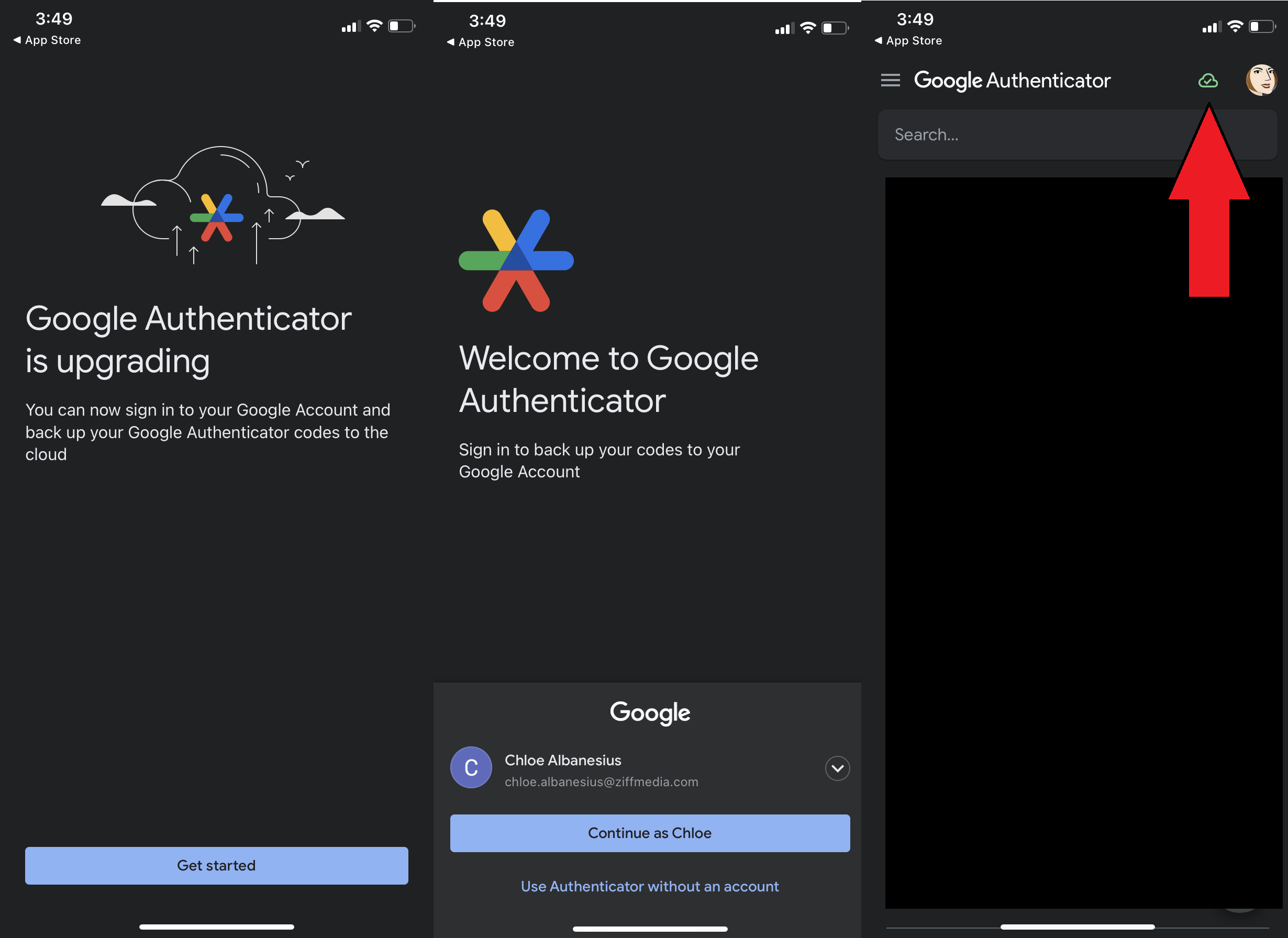
- 使用 Google 账户备份:如果你的 Google Authenticator 应用程序已连接到你的 Google 账户,你可以使用 Google 账户备份来将你的账户迁移到新的手机。在新手机上安装 Google Authenticator 应用程序,然后使用你的 Google 账户登录。你的账户将会自动恢复。
- 手动迁移:对于不支持 Google 账户备份的账户,你需要手动迁移。在旧手机上,打开 Google Authenticator 应用程序,点击菜单按钮(通常是三个点),然后选择 "转移账户" -> "导出账户"。然后,在新手机上安装 Google Authenticator 应用程序,点击 "+" 按钮,选择 "扫描二维码",然后扫描旧手机上显示的二维码。
Google Authenticator 的替代方案
虽然 Google Authenticator 是一款优秀的双重验证工具,但它并非唯一的选择。以下是一些 Google Authenticator 的替代方案:
| 应用程序 | 描述 | 特点 |
|---|---|---|
| Authy | Authy 是一款流行的双重验证应用程序,提供跨设备同步和备份功能。 | 跨设备同步,备份和恢复,支持多种平台。 |
| Microsoft Authenticator | Microsoft Authenticator 是一款由微软开发的安全验证应用程序,与 Microsoft 账户紧密集成。 | 与 Microsoft 账户集成,支持指纹或面部识别。 |
| LastPass Authenticator | LastPass Authenticator 是 LastPass 密码管理器的配套应用程序,提供一键式验证。 | 一键式验证,与 LastPass 密码管理器集成。 |
结论
Google Authenticator 是一款简单易用且安全可靠的双重验证工具。通过使用 Google Authenticator,你可以为你的账户增加一层额外的安全保障,防止未经授权的访问。虽然有一些替代方案可供选择,但 Google Authenticator 仍然是保护你的在线账户安全的绝佳选择。